Accessibility Guideline
Accessibility is crucial for ensuring that digital products are usable by as many people as possible, regardless of their abilities or disabilities.

What is accessibility?
Ensuring accessibility in digital products is crucial for serving a physically abled audience and improving web usability. This encompasses accommodating diverse groups such as blind individuals, users of hearing aids, those with cognitive disabilities, and people with physical abilities. Additionally, it allows us to define and enhance the connection and interaction between humans and computer/mobile devices.
Why it is needed?
Accessibility is essential because it not only improves the experience for people with disabilities but also increases usability for everyone, making the product more user-friendly and attractive to a broader audience. This, in turn, enhances the overall experience by ensuring that all users receive the same quality of experience and can adapt to different user needs and situations.
Diverse abilities and barriers

Product vision / mission
When creating digital experiences for older adults, it's crucial to consider age-related changes that can impact their interaction.
From declining eyesight to reduced mobility and varying levels of tech comfort, our designs must prioritise clarity, ease of use, and intuitive navigation.

Hearing imparement
Users who are deaf or hard of hearing encounter barriers when accessing digital content that heavily relies on audio information.
Incorporating visual cues, captions, transcripts, and sign language interpreters can significantly enhance accessibility and comprehension.

Physical disability
Users with physical disabilities, particularly those with impaired motor skills, face significant challenges in interacting with digital interfaces.
Implementing features like keyboard navigation, alternative input methods, and customisable interface elements ensures inclusivity and usability.

Cognitive disability
Users with cognitive disabilities experience difficulties with memory, cognitive overload and low attention span.
Using clear and concise, consistent experience, and visual aids can improve understanding and usability.

Colour-blind users
Colourblind individuals face challenges with distinguishing colours. Designing with their needs in mind involves using colour combinations they can differentiate easily.
For instance, avoiding red-green combinations, which are problematic for many colourblind individuals, and opting for high-contrast schemes can enhance the accessibility of content.
Solutions
Focus style
Focus styles are crucial in accessible design as they provide visual cues indicating which element currently has keyboard focus. This is especially important for users who navigate using keyboards or assistive technologies.
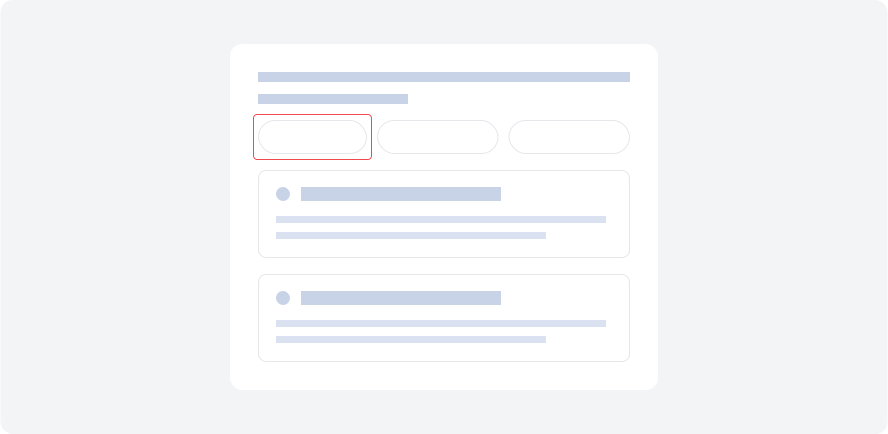
Example - When a button changes its appearance, such as colour or outline, when it receives keyboard focus.
System feedback
Providing clear and timely feedback to users about their actions or the system's status. This helps users understand their interactions and makes the experience more engaging and intuitive.
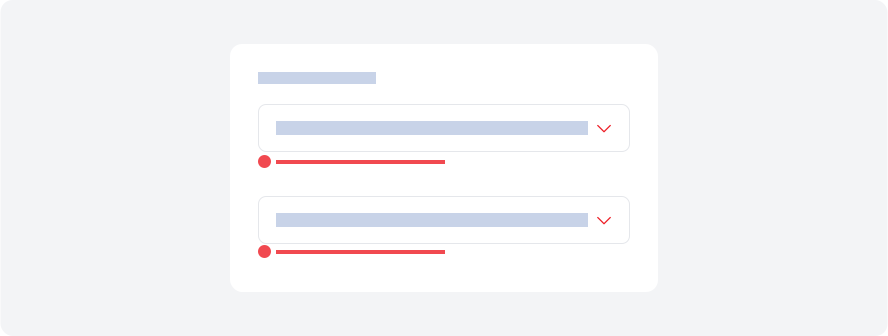
Example - A login form will alert the user with an audio error or visual cue to indicate that they cannot proceed further.
Clear communication
Using simple language, visuals, and instructions to convey information effectively. This includes avoiding jargon, using concise and understandable messaging, and providing helpful guidance throughout the user journey.
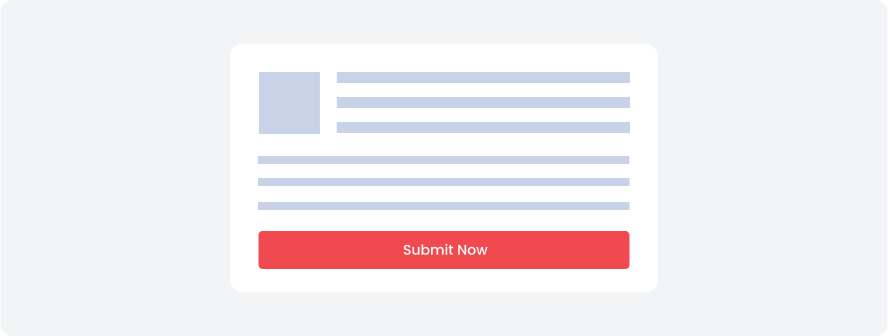
Example - Instead of using 'submit a form by clicking on the button' Use 'Submit Now'.
Colour contrast, typography, spacing, sizing (Across devices)
Paying attention to visual elements such as colour contrast for readability, typography for legibility, appropriate spacing for clarity, and sizing that adapts well across different devices. These factors contribute to a visually appealing and accessible design.
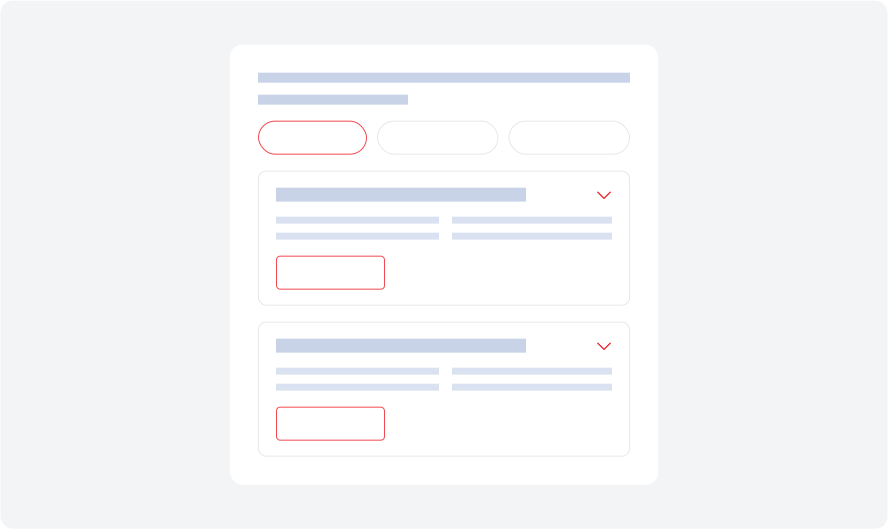
Example - Using high colour contrast between text and background enhances readability, especially for users with visual impairments.
Choices visible
Making all primary actions and functionalities clearly visible and easily accessible to users. This helps users navigate and make informed decisions based on the available choices.
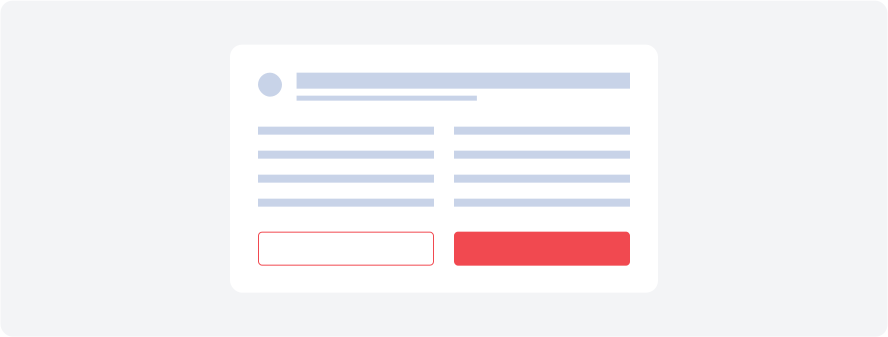
Example - Placing essential buttons like "Add to Cart" or "Checkout" prominently on the checkout page of a e-commerce website helps users make decisions swiftly and avoid confusion.
Consistency overall
Maintaining consistency in design elements, layout, and interactions across the entire user interface. Consistency enhances usability, reduces cognitive load, and fosters a sense of familiarity and trust among users.
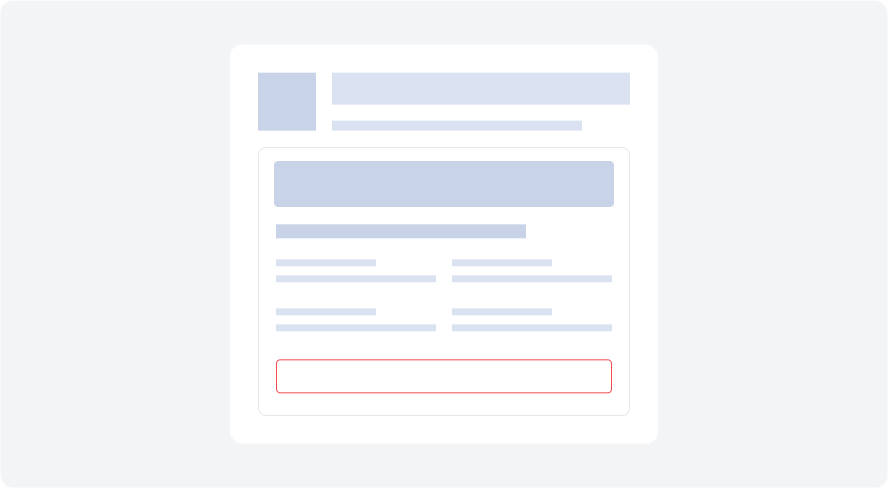
Example - Using consistent colour schemes, typography styles, and button designs throughout a website or app creates a cohesive user experience.
Error handling
Designing interfaces that minimise the potential for user errors by providing clear instructions, preventing accidental actions, and offering error prevention and recovery mechanisms.
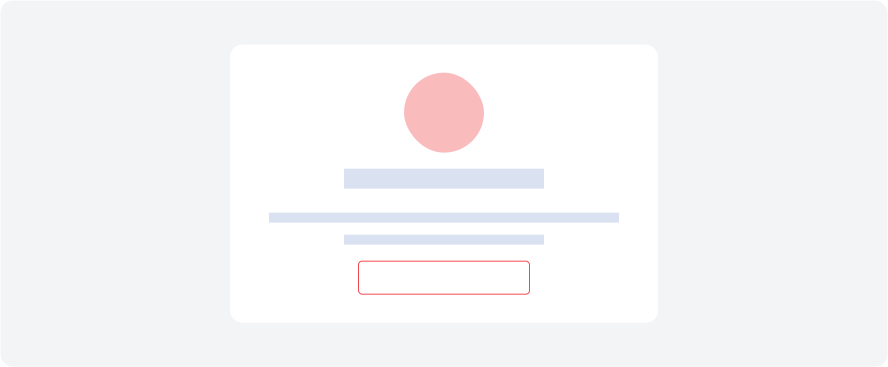
Example - Displaying no internet found error upfront in the app, clearly and concisely, for the user to see with underline
Visual affordance
Utilising visual cues and design elements to emphasise on important information on in the user interface which make overall understandability better.
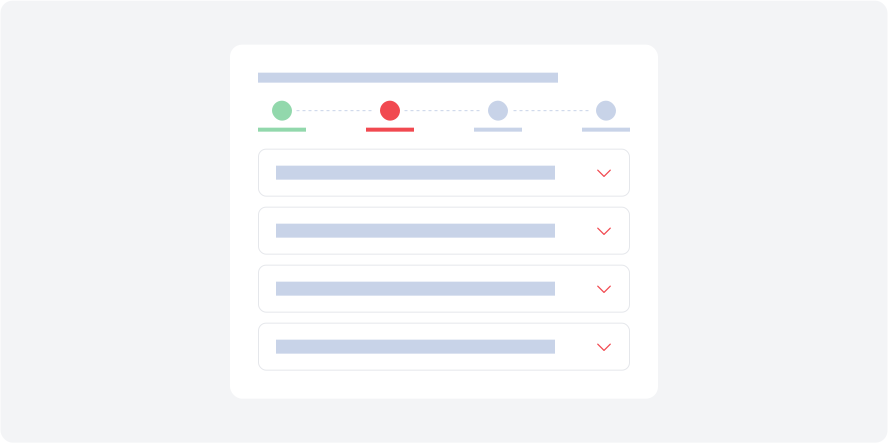
Example - A progress bar that fills up as a task is completed, providing a clear visual indicator of progress.
Keyboard navigation
Keyboard and mouse accessibility ensures all elements can be operated by keyboard, with clear focus and tab order. Offering shortcuts helps non-mouse users, while avoiding hover aids motor-impaired users, ensuring inclusivity.
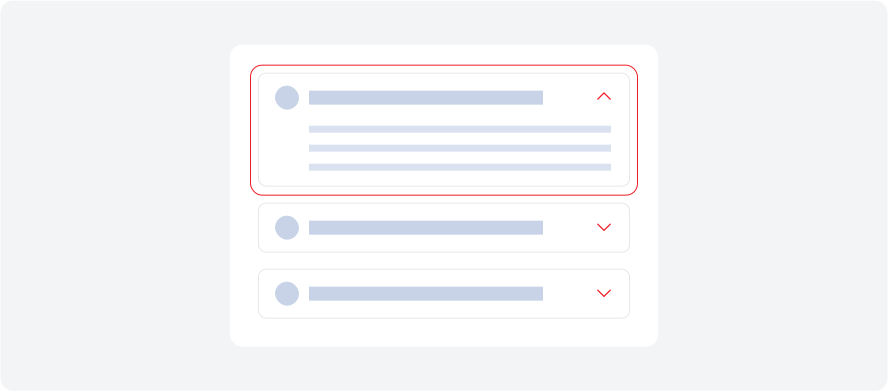
Example - Keyboard and mouse accessibility is a web form where users can navigate through fields using the "Tab" key and submit the form by pressing "Enter"
Reducing target precision (Fitts law)
Applying Fitts's Law in accessibility involves designing large clickable areas for buttons and links, ensuring they are easily reachable by the user's cursor or touch input. This design strategy minimises the challenge of precise targeting.
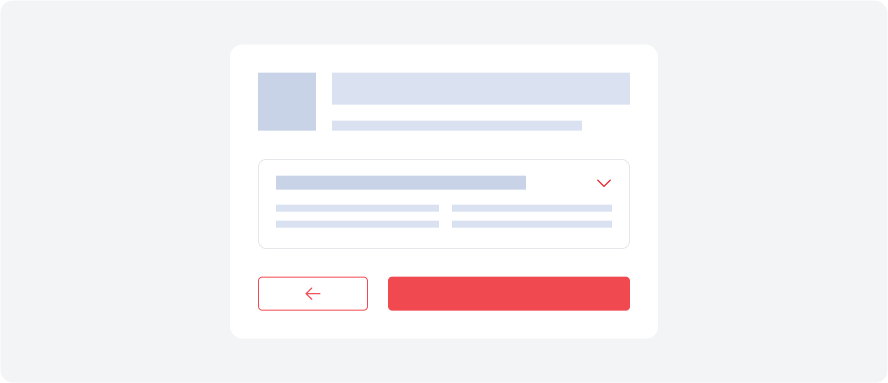
Example - The back button is made larger and positioned strategically for easy accessibility.
Eye tracking
Understanding user patterns with eye tracking helps optimise layouts for natural information consumption. This improves engagement, readability, and overall user experience on digital interfaces.
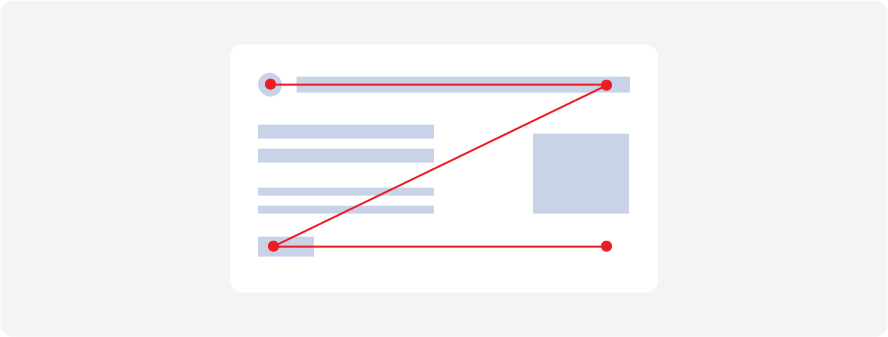
Example - We design pages based on how people naturally scan content. For pages with less text and more visuals, we consider the Z-pattern, while for articles and blogs, we focus on the F-pattern.
Assisted journeys
An assisted journey educates users about its features and interactions, while a non-assisted journey assumes users are already familiar with the app and its features, lacking a guide or walkthrough.
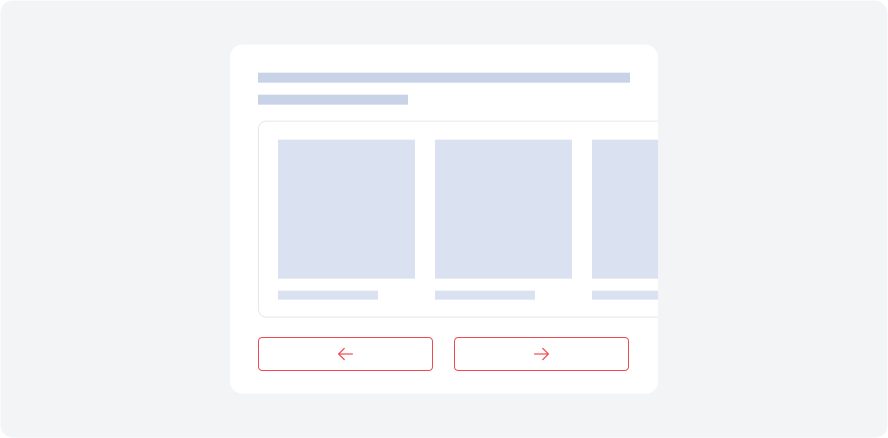
Example - An app tutorial in UX serves as a helpful guide or walkthrough for users to grasp the app's usage. It involves step-by-step instructions, visuals, and interactive elements, making it useful for newcomers, those unfamiliar with apps, and individuals with cognitive challenges.
What is user testing ?
User testing involves evaluating the usability, functionality, and overall user experience of digital products or interfaces through real user interactions. Its goal is to gather feedback, identify issues, and validate design choices, ensuring the design system meets user needs effectively. Both developers and designers can conduct user testing to obtain valuable feedback and achieve design goals.
Why it is needed?
User testing is essential in design it uncovers real user interactions, finds issues, validates decisions, ensures accessibility, fuels iterative improvements, and boosts user satisfaction.
User testing method
User testing methods observe how users interact with a product, gather feedback, and aim to identify usability issues and improve the user experience.
Usability Testing
For designer
Usability testing from the design end involves assessing how users interact with the product's design and it’s features. It aims to improve usability, identify design flaws, and gather insights for iterative design improvements
Stage- After design prototype
Useful tools- UsabilityHub & UserTesting
Feedback and Session Capturing
For designer
For developer
Feedback and session capturing from the design end involve methods like integrating feedback forms into the design, recording user sessions, analysing heat maps, conducting user testing, and utilising analytics. These approaches help designers gather insights, observe interactions, understand user behaviour, and improve the overall user experience.
Stage- After development
Useful tools- google Analytics
Accessibility Testing
For designer
For developer
Accessibility testing is the evaluation of digital products to ensure they are usable by people with disabilities. This process involves both the design and testing teams, with the design team creating accessible design elements, and the testing team conducting tests to verify accessibility standards are met.
Stage- After design prototype or after development
Useful tools- W3 Guidelines
A/B Testing
For designer
A/B testing, also known as split testing, is a method used to compare multiple versions of a design, webpage, or feature to determine which one performs better in terms of user engagement, conversions, or other metrics. It involves presenting these variations to different groups of users simultaneously and then analysing the results to make data-driven decisions about design improvements or changes.
Stage- After design prototype
Manually tested
Visual Testing
For designer
For developer
Visual testing is an essential step in product development and interface design. It helps identify unintended visual changes by comparing the actual design prototype with the developed design. This comparison covers aspects like typography, colours, spacing, interactions, and overall visual elements.
Stage- After development
Manually tested
Cross-browser Testing
For developer
Cross-browser testing is crucial in web development, where varying browser interpretations of code can lead to user experience differences. These tests ensure that content displays consistently across browsers, preventing potential discrepancies.
Stage- After development
Useful tools- browserstack
Responsive Design testing
For developer
Responsive design testing is the process of evaluating a website or application across different devices and screen sizes to ensure that it displays and functions correctly on various platforms. This testing ensures that the design is responsive and adapts well to different screen resolutions, orientations, and device types, providing a consistent and optimal user experience across all devices.
Stage- After development
Useful tools- Responsive test tool
Performance Testing
For developer
Design-side performance testing involves evaluating the efficiency of the user interface (UI) and user experience (UX) elements within a digital product. This includes assessing how quickly UI components load, how smoothly interactions occur, and how the design impacts overall system performance.
Stage- After development
Useful tools- Grafana K6
Error Tracking
For developer
Error tracking in product development involves monitoring, detecting, and managing errors or bugs to ensure smooth functionality and user experience.
Stage- After development
Useful tools- Vibhas to confirm
User testing matrix
User testing metrics are utilized to evaluate different facets of product performance and user satisfaction.

User Satisfaction
The degree to which users are contented with and fulfilled by their experience while using a product.

Usability
The ease and effectiveness with which users can interact with a design to achieve their goals efficiently and satisfactorily.

User Engagement
The level of involvement, interaction, and attention users exhibit while using a product or service, often indicating their interest and investment in the experience.

Error Rate
The frequency or percentage of errors encountered by users while using product, reflecting its reliability and user-friendliness.

Task Completion Time
The duration or speed at which users can accomplish specific tasks or actions influencing overall user experience and satisfaction.

Accessibility
The extent to which a product is accessible and usable by individuals with disabilities, ensuring inclusivity and equal access to information and functionalities.

Loading Time
The amount of time it takes for a application or webpage to load and become fully functional, impacting user experience, engagement, and retention.