⌘ K
  • Design Principles
  • Design Framework
  • UX Laws
  • Colours
  • Typography
  • Layout Grids
  • Spacing & Radius
  • Shadow & Blur
Product Design Process
Accessibility Guideline
Content Voice
Marketing & Collaterals
  • Accordion
  • App Bar
  • Avatar
  • Badge
  • Button
  • Breadcrumb
  • Bottom Navigation
  • Carousel
  • Cards
  • Checkbox
  • Chip
  • Date Picker
  • Dropdown
  • Dialog
  • Divider
  • Floating Action Button
  • Footer
  • Header
  • Link
  • Loader
  • Menu
  • Pagination
  • Popover
  • Progress Bar
  • Radio Button
  • Search
  • Sidebar
  • Slider
  • Skeleton
  • Statistic
  • Stepper
  • Switch
  • Table
  • Tabs
  • Tag
  • Text Field
  • Timeline
  • Toast Message
  • Tooltip
  • Upload
  • Logos
  • System Icons
  • Visual Icons
  • Illustrations
  • Images
  • Tones
Templates
v 1.0
  • About Helix
  • For Designers
  • For Developers
  • Components
Dialog

Dialog

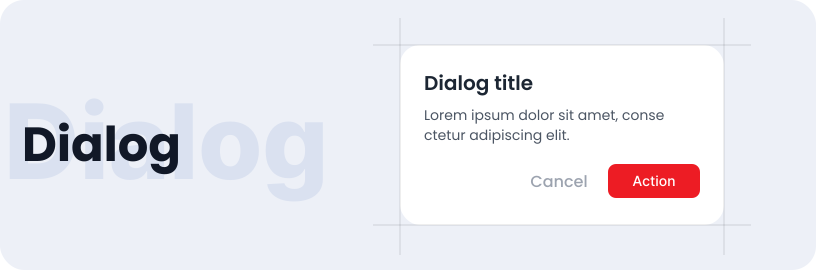
The dialog box component is a versatile tool for presenting important information, messages, alerts, or interactive content. It enhances user communication by providing clear, visually engaging interactions.

Usage

  • Display critical alerts or notifications that require immediate attention.
  • Prompt users to confirm actions before proceeding, such as deleting an item or submitting a form.
  • Notify users of form validation errors or incomplete inputs.

Anatomy

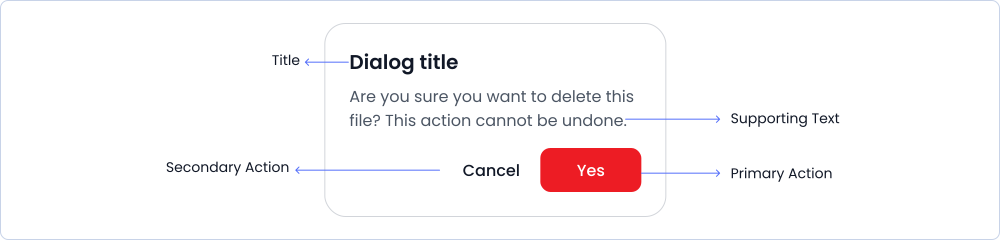
The dialog box includes a title, supporting text, a secondary action button, and a primary action button.
Options

Dialog box has various option like informative, OTP, topic select, input.

Informative

OTP

Topic

Input

Selected

Sizes

Dialog box are available in different sizes such as small, medium and large.

Small

Medium

Large

Specifications

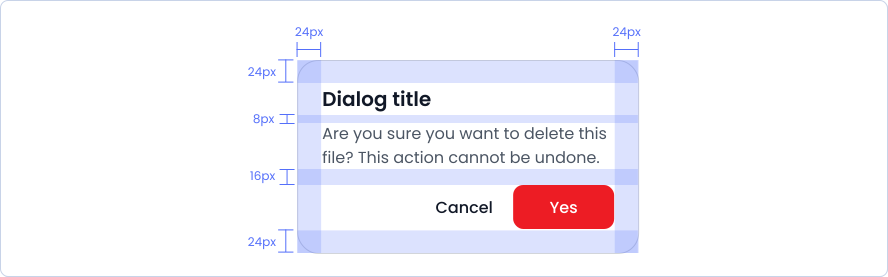
Structure and spacing measurements for dialog.
Live Demo

The Dialog is demonstrated in a live environment in this demo.

Storybook

Gain access to the component library by clicking here. (For developers)

Dropdown
Divider

Helix - HDFC Life 2025